Technical Issues FAQ
Find answers to questions about video restrictions, the “Finish” button not working and incomplete courses.
-
I am unable to view the videos as it is restricted.
⚠️ Important Note: The SafeSchools administration team does not control network access or video playback functionality. Video errors are almost always related to local Wi-Fi firewalls or browser account conflicts.
Ensure you are logged into Google/YouTube ONLY with your CPS email.
If you are at a school location and these steps don't work, please contact your school or office Tech Coordinator.
Should you continue to experience difficulty loading a video, proceed with the following troubleshooting steps:
1. Re-Sync Your YouTube Session: Sign out from all browser windows and personal accounts. Access YouTube.com directly to log out, then sign back in specifically with your CPS credentials. With YouTube remaining active in one tab, return to SafeSchools and refresh the page. Review the YouTube Login Guide for further details.
2. Clear Browser Data: Wipe your cache and history, ensuring that Third-Party Cookies are permitted.
3. Avoid External Login Portals: When on-site at a CPS facility, do not utilize internetlogin.com. Instead, reach the modules through your designated SafeSchools portal.
4. Resolve "Private Video" Restrictions: Refer to our comprehensive Private Video Troubleshooting Guide for resolution steps.
5. Switch Browser or Device: Verify you are utilizing the latest version of Chrome. Alternatively, attempt to view the content on a mobile device or ensure your current system is fully updated.
Please avoid using alternative browsers; you may need to contact the IT Help Desk to have your Chrome browser updated.
Credit Reminder: The system automatically grants credit only when videos are watched completely at normal speed. We cannot adjust your local Wi-Fi firewall settings or override incomplete system records caused by unverified views or speed adjustments. -
I completed the video, but it still appears unfinished.
Status discrepancies often arise if content is viewed directly on YouTube rather than through the SafeSchools portal, or if you are not authenticated with your CPS email.
Additionally, adjusting playback speed (e.g., 1.5x, 2x) or skipping segments will result in an INCOMPLETE status - regardless of assessment results.Utilizing speed adjustments will invalidate your completion credit. While the speed toggle remains visible, please ensure videos play at normal speed and are watched in their entirety within the SafeSchools platform to ensure your records update correctly. -
I am unable to proceed further with the training even after clicking on the links for ISBE and Resources.
To resolve incomplete course issues:
- Open each course showing as incomplete.
- Go to the survey sections.
- Do not complete the surveys again. Instead:
- Scroll down the page
- Click "FINISH"
- The item will show a green checkmark indicating completion
Refer to the screenshot below for guidance.

-
I completed the training, but the system has not registered it.
Please allow up to 24 hours for the system to update and display your completed training. Confirm that every course section is marked with a green checkmark (refer to the screenshot below). If any section remains incomplete, troubleshoot by reviewing the “Video Restricted” and “Finish Button” portions of the FAQ. Note: Certificates are not issued for Test Out courses.
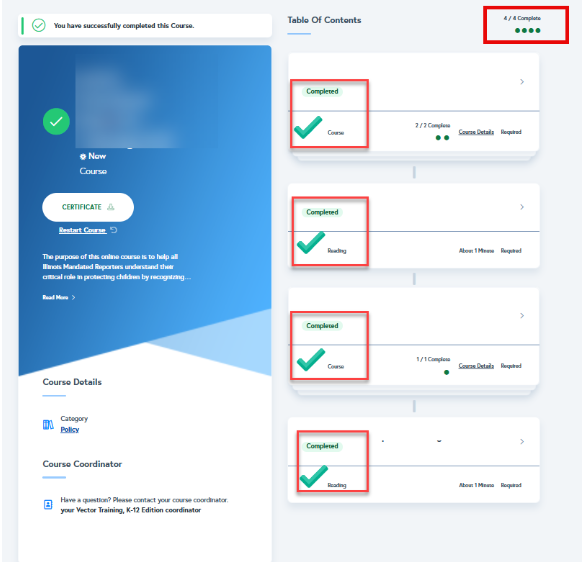
Note: You can complete course sections in any order (unless locked). However, you MUST complete ALL sections and ensure every item shows a green checkmark to receive full completion credit.
-
I am unable to open the SafeSchools website.
If you encounter a “Bad Gateway” error when trying to open SafeSchools, follow these troubleshooting steps:
Update Browser:
- Open Chrome on your computer
- Click "More" (three dots) at the top right
- Select "Help" > "About Google Chrome"
- Click "Update Google Chrome." (You may need IT assistance for this step. If you can't find this button, you're on the latest version)
- Click "Relaunch"
If the issue persists, please contact IT support for further assistance.
Account and Access FAQ
Find answers to questions about logging in, recovering your password and managing account access.
-
How do I access the platform?
To access the SafeSchools platform, please visit SafeSchools Login. Enter your CPS username, password and code using the RapidIdentity app to proceed.
I am a new hire:
Click on "Claim My Account" to set up your account. If you encounter any issues during setup, please contact Employee Services for assistance.

I can't remember my Username/Password:
If you already have a SafeSchools account but can't recall your username or password, click the "Forgot Login " link on the login page and follow the instructions to reset your credentials.

I have been locked out of my account due to incorrect password:
After a lockout occurs, it may take up to 30 minutes before you can attempt to log in again. You might also need to reset your CPS password. For further assistance, contact ITS at (773) 553-3925 or follow the instructions to reset your CPS password.
If you are using a non-CPS issued device to access training from a CPS location, you must first follow these instructions to download two necessary certificates.
I am trying to update my password or hit forget password but I didn't receive an email from SafeSchools?
Please look for an email from Mimecast and hit "Release" mail; you should find the reset email in your inbox shortly after. If the issue persists, please reach out to IT as the email is getting blocked due to settings.
How do I see what training is assigned to me?
Once logged into SafeSchools, all required training courses will be listed on your homepage.
You can also navigate to the "My Assignments" section to view all assigned training modules.
Complete all mandatory SafeSchools training courses and assessments as assigned.
You will receive a certificate of completion for your records. There is no need to email proof of completion, as training records are automatically updated and monitored.
If you don’t have any outstanding trainings, you will see the message in the screenshot below.

What are the Due Dates for the courses assigned:
- New Hires:If you were recently hired at CPS and received a notification email for the first time, you have 30 days from the date of notification to complete your assigned courses. If some courses appear as ‘PAST DUE’ in your Training Plan but you are still within your first 30 days, you may disregard the 'PAST DUE' status. For any courses with a due date after your first 30 days, those courses must be completed by the specified due date.
- Current Staff: If you have been employed by CPS for over 30 days, please ensure you complete any ‘PAST DUE’ assignments as soon as possible to remain compliant with your training requirements.
Note: You may receive automatic reminder emails regarding training due dates. If your SafeSchools account indicates that you are up to date and have no pending trainings assigned, please ignore these emails.
I completed all my assigned trainings, what’s next?
After completing all assigned training, please stay tuned for any updates or additional courses that may be assigned. New training is typically rolled out for Back to School, Winter, and Spring sessions each school year.
Please note: There is no need to send your completion certificates to Talent Training. Please download and keep a copy for your records.
-
I would like to take additional training. How do I do that? I was asked to take a particular training. Where can I find it?
If your desired course has not been assigned to you, please search for additional courses by following these steps: Accessing CPS Custom Course Folder in SafeSchools.
It’s important to note the exact title of the course you are trying to take so you can look it up on SafeSchools.
-
How do I view the trainings that I have completed? How do I print/download certificates for the training I completed?
To view your training history for previous school years:
- Go to the 'Training History' section.
- Adjust the 'From Date' to the relevant time period.
- Click the 'Refresh List' button to update your view.
- You will be able to view/download certificates for completed courses.

-
Volunteer Training
Where can I locate the training modules assigned for volunteers?
Specific course requirements are determined by your volunteer level and site assignment. For details regarding your required modules, please contact Volunteer Services directly at volunteer@cps.edu. They will issue a unique registration keycode and provide instructions to help you access the portal.
-
How do I access reports?
If you are a principal or assistant principal needing to pull a report, please email talenttraining@cps.edu. Provide the name of the school for which you need access, and allow 24-48 hours for your account to be updated with the necessary access.
Refer to this document for guidance on running reports to check training compliance for your staff.
-
Account Merger/Changes: I changed schools; what happens to my training record?
Your training record can be transferred or merged with your new school upon request. Please email talenttraining@cps.edu with your old and new account information, including your username and school name.
We will respond with any additional questions if needed. Please allow 5-7 business days for the account merge to be completed and you may continue to finish any other training on your current site.
-
I took this training last year; do I still need to take it again?
Yes, all CPS employees working in the District are required to complete mandatory trainings annually. We appreciate your commitment to keeping our students and staff safe.
I I am on a leave of absence or need an extension. Can my due date be changed?
Training due dates cannot be modified for individual accounts. If you are on an approved leave (e.g., Maternity, Medical, etc.) or require an extension:
Request your Manager update your records: Your status should be updated in PeopleSoft by your HRBP.
Automated Reminders: During your leave of absence, you may still receive automated "Past Due" emails from SafeSchools or specific departments. You may disregard these once you have notified your manager.
Requirement: All staff are still required to complete mandatory training. Please complete your assignments as soon as you return to work.Training Certificates don’t have a signature.
Our system with Vector does not include signatures on certificates. However, as long as your completion is verified in SafeSchools, your compliance report training is considered authentic.
ISBE FAQ
Find answers to questions about how to access training history and certificates.
-
Selected online CPS SafeSchools training is now eligible for ISBE credit hours. To earn Professional Development (PD) hours, you must complete the survey at the end of the eligible course. For more detailed guidance, view these instructions.
Please record your hours directly with ISBE. We do not have access to your ISBE/ELIS account/records. Please contact ISBE here or call the Agency Call Center at (866) 262-6663 or (217) 782-4321. For questions regarding Educator Licensure, contact your local ROE/ISC for faster service or call (217) 557-ISBE (4723).
Evidence of Completion documents will be provided in the event you are audited. Again, you must have completed the survey at the end of the eligible course to receive an EOC (evidence of completion) when audited.